Installation Guide
The OpenStick T1 kit is a light painting control device developed by Socolode for creating creative light painting artworks. This guide covers the complete process from unboxing to first use.
Installation Steps
1. Install Light Painting Stick Accessories
Installation steps (splice board kit):
note
Installation video placeholder (to be added)
2. Enter the Light Painting Stick App
If it's your first time using it, it's best to first understand the basic operations of the host (it's very simple): User Guide (First Time Use)
Select App
Light Painting Stick
- Select App: Toggle the joystick button "Left/Right" to select "Light Painting Stick App"
- Enter App: Press the "Center" button to enter the light painting stick app
3. UI Introduction
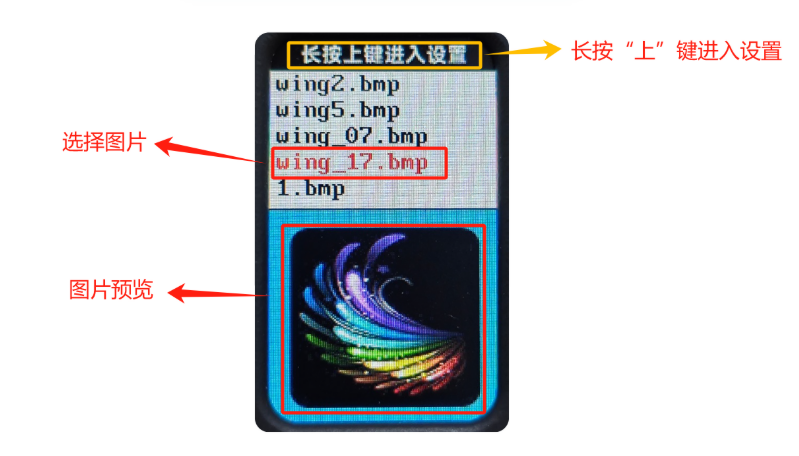
- Image Selection: Toggle the joystick "Up/Down" button to select images.
- Image Preview: The image being previewed.
- Enter Settings: Long press the "Up" button to enter settings and adjust parameters.
- Play: After selecting an image, click the "Center" button to start playback.
4. Play Images
- Play: Select the image you want to play, click the "Center" button to enter playback mode. The screen will show the playback progress percentage.
- Pause: During playback, continue clicking the "Center" button to pause playback. The light painting stick's lighting will stay in the paused state.
- Resume: Click the "Center" button again to continue playing the remaining part of the image.
- Stop: Click the "Down" button to stop and exit the current playback.
5. Enter Settings
- Brightness: After selecting, click the "Left/Right" buttons to adjust the playback brightness between 10%-100%
- Speed: After selecting, click the "Left/Right" buttons to adjust the playback speed between 10%-100%
- Sync: After selecting, click the "Left/Right" buttons to toggle between "On/Off" states
- The sync function enables wireless synchronization of the "Play" button across multiple Firefly T1 devices, allowing simultaneous image playback (this is so multiple light painting sticks can be combined to create large-area light painting effects)
- Since the sync function uses a WiFi module, it consumes more power when turned on. It's recommended to turn it off when not in use
- Countdown: After selecting, click or long press to set the countdown time
- That is, the delayed playback time after clicking the "Play" button
6. Exit the Light Painting Stick App
- Exit Light Painting Stick App: It's simple - at any time, long press the "Center" button to exit!
Now Just Play With It
Feel free to contact me if you have any questions~
Personal WeChat
WeChat: agui-lab