Connect to Phone & PC
Firefly T1 supports two ways to connect: wireless hotspot (for settings and asset management) and wired USB drive (for file read/write and App updates). Choose whichever fits your needs.
Wireless Connection
No data cable needed — use the Wi-Fi hotspot built into Firefly T1 and open the management page from your phone or computer's browser.
Step 1: Enter "Hotspot"
On the main screen, select and enter the "Hotspot" feature.
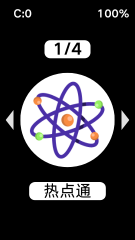
Step 2: Connect to the Wi-Fi Hotspot
After entering, the screen shows the Wi-Fi hotspot name and password. Connect your phone or computer to that hotspot.
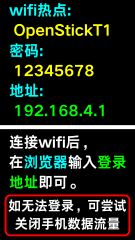
Step 3: Open the Management Page
Once connected, open your browser and enter the address shown on the screen, 192.168.4.1, to connect to Firefly T1.
Step 4: Manage Settings & Assets
The page includes test settings and lets you manage the image assets used in the light painting app. Here you can adjust various parameters on Firefly T1, as well as add or delete assets.

Wired Connection
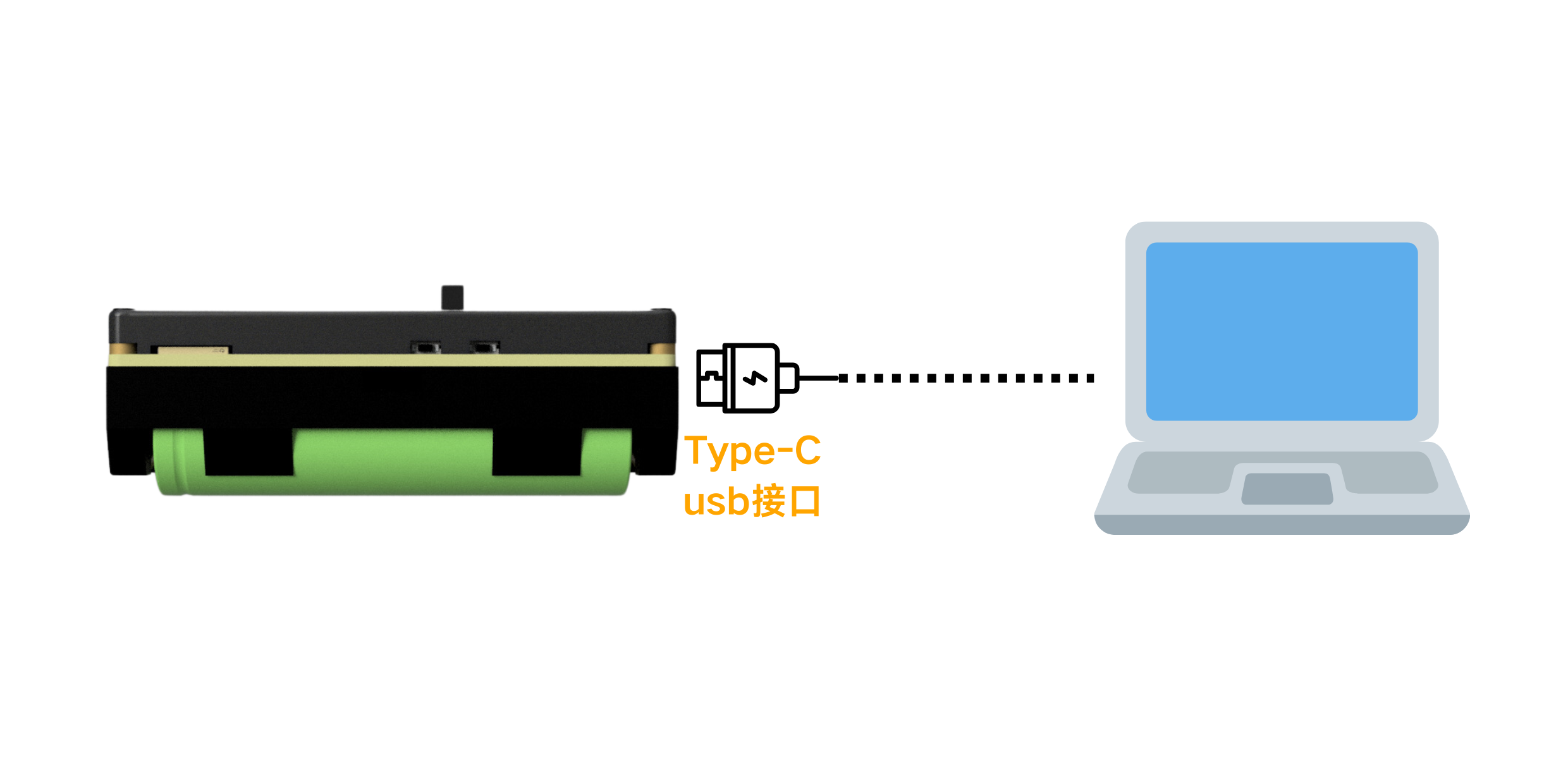
Use the included Type-C data cable to connect Firefly T1 to a USB port on your computer for file read/write and App updates.
How to Connect
Connect Firefly T1 to your computer with the Type-C data cable.
USB Drive Function
Once connected successfully, a new USB drive will appear in your computer's file explorer, which you can use like a normal USB drive.
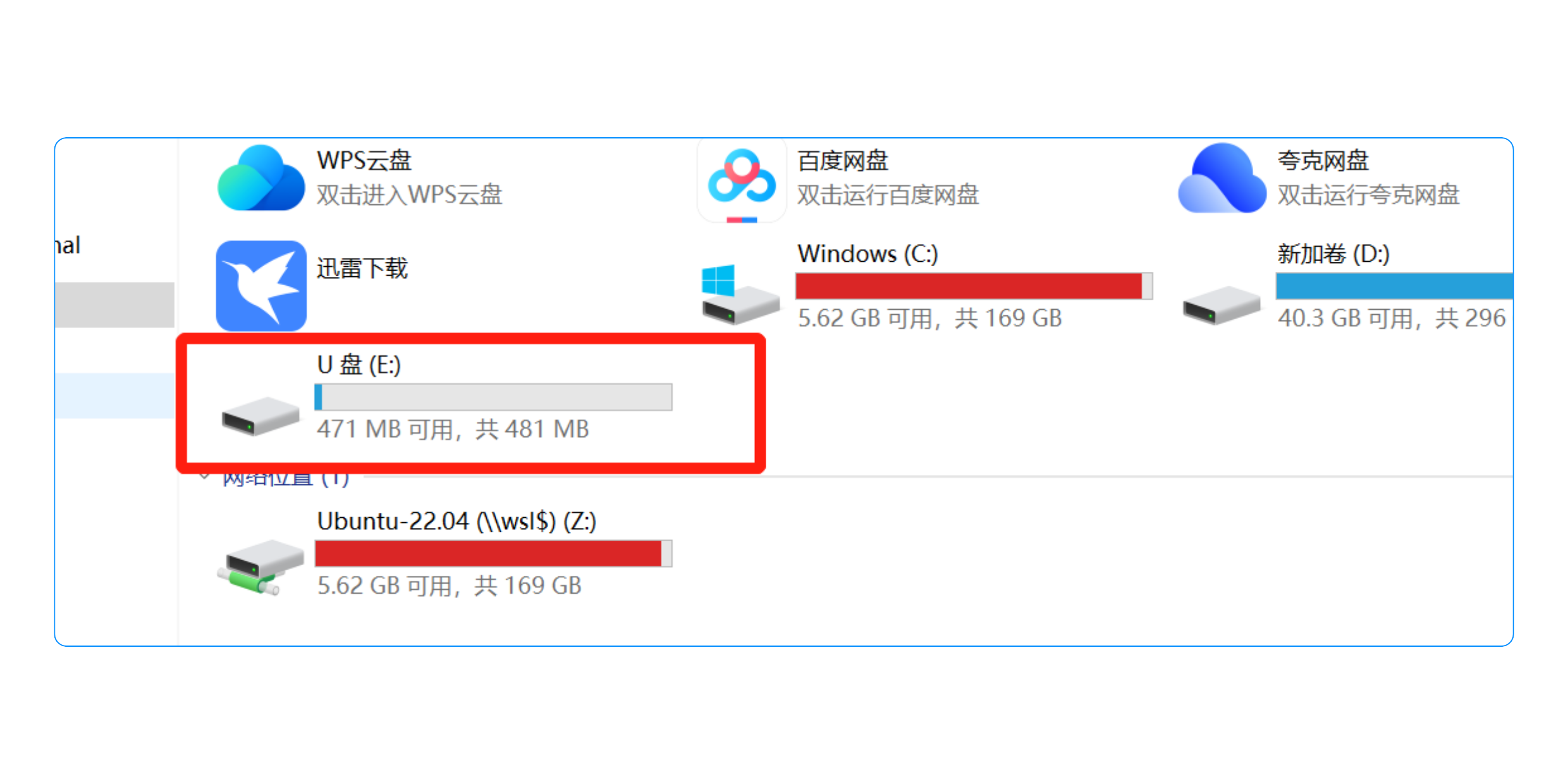
Operations you can do directly on the USB drive include:
- Copy new App scripts to the USB drive
- Manage image assets
- Update system files, and more
Notes
About Data Cable
- To ensure charging power and data transmission stability, it is recommended to use the original matching data cable