Firefly T1 / Beetle S1 - Setup Development Environment
This guide explains how to develop your own MicroPython scripts for the Firefly T1 and Beetle S1. Suitable for developers with some programming experience who want to create their own light effect programs.
1. Install Thonny IDE
Go to https://thonny.org/ and download the installer for your operating system:
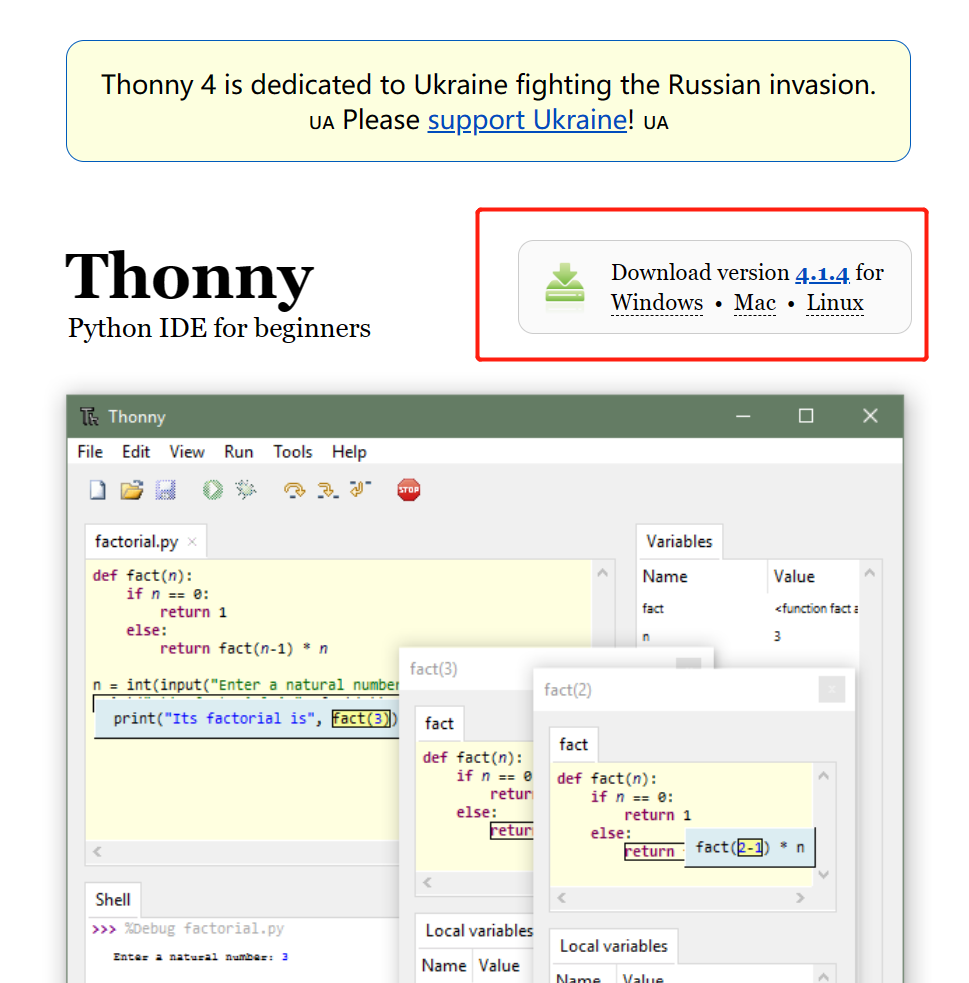
Thonny is a lightweight IDE designed for MicroPython, ready to use out of the box with no additional configuration needed. Follow the installation prompts to complete the setup.
2. Update Firmware
Make sure your device is running the latest firmware for compatibility with the latest development features.
Refer to the Firmware Update & Flash section to update the firmware. You can skip this step if your firmware is already up to date.
3. Run Your First Program
3.1 Connect the Device
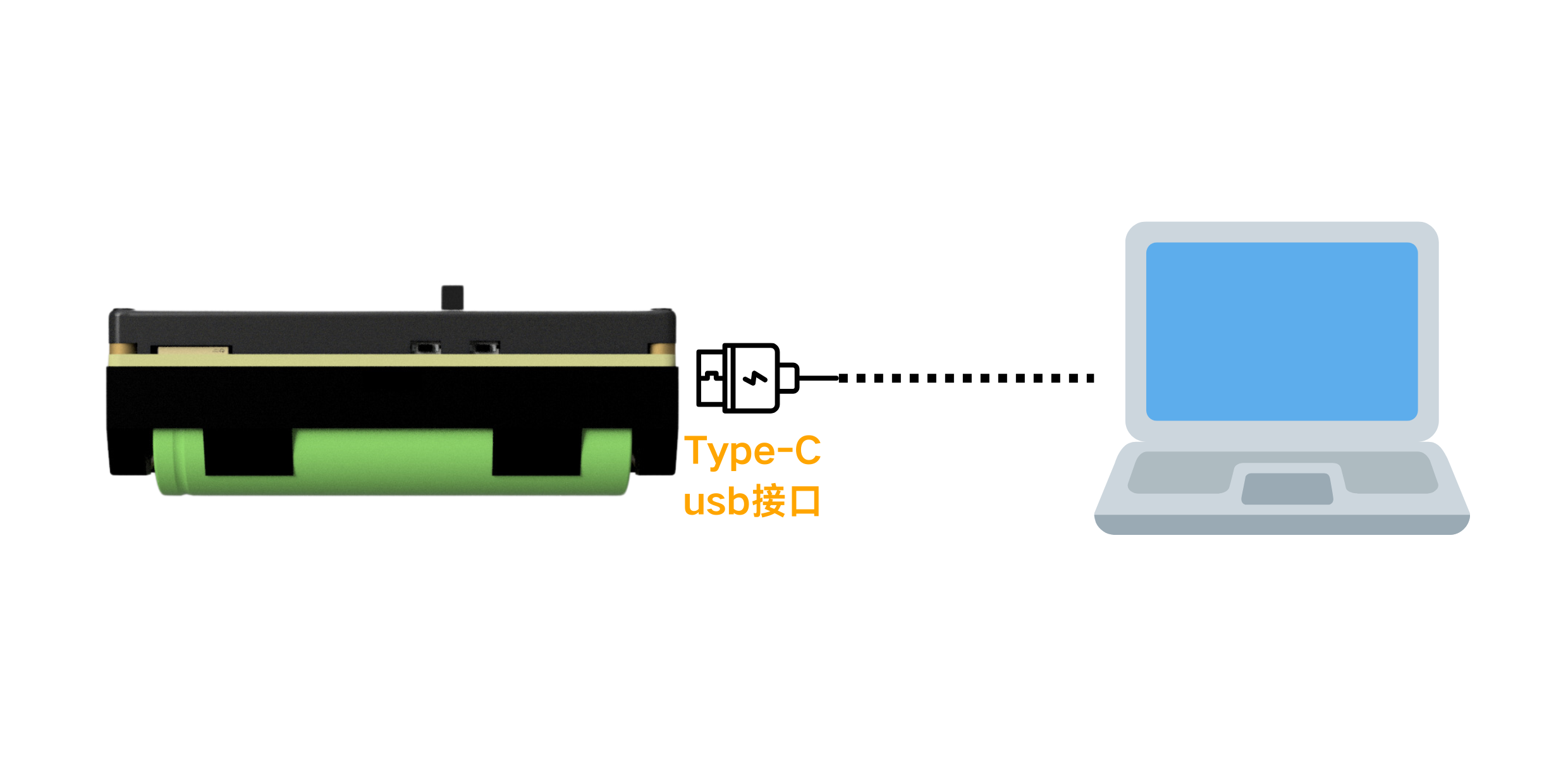
Connect your device (Firefly T1 or Beetle S1) to your computer via USB cable:
3.2 Open Thonny and Configure Interpreter
Open Thonny, go to Run → Configure Interpreter, select the COM port corresponding to your device (look for the port with the Espressif CDC Device prefix), then click OK:
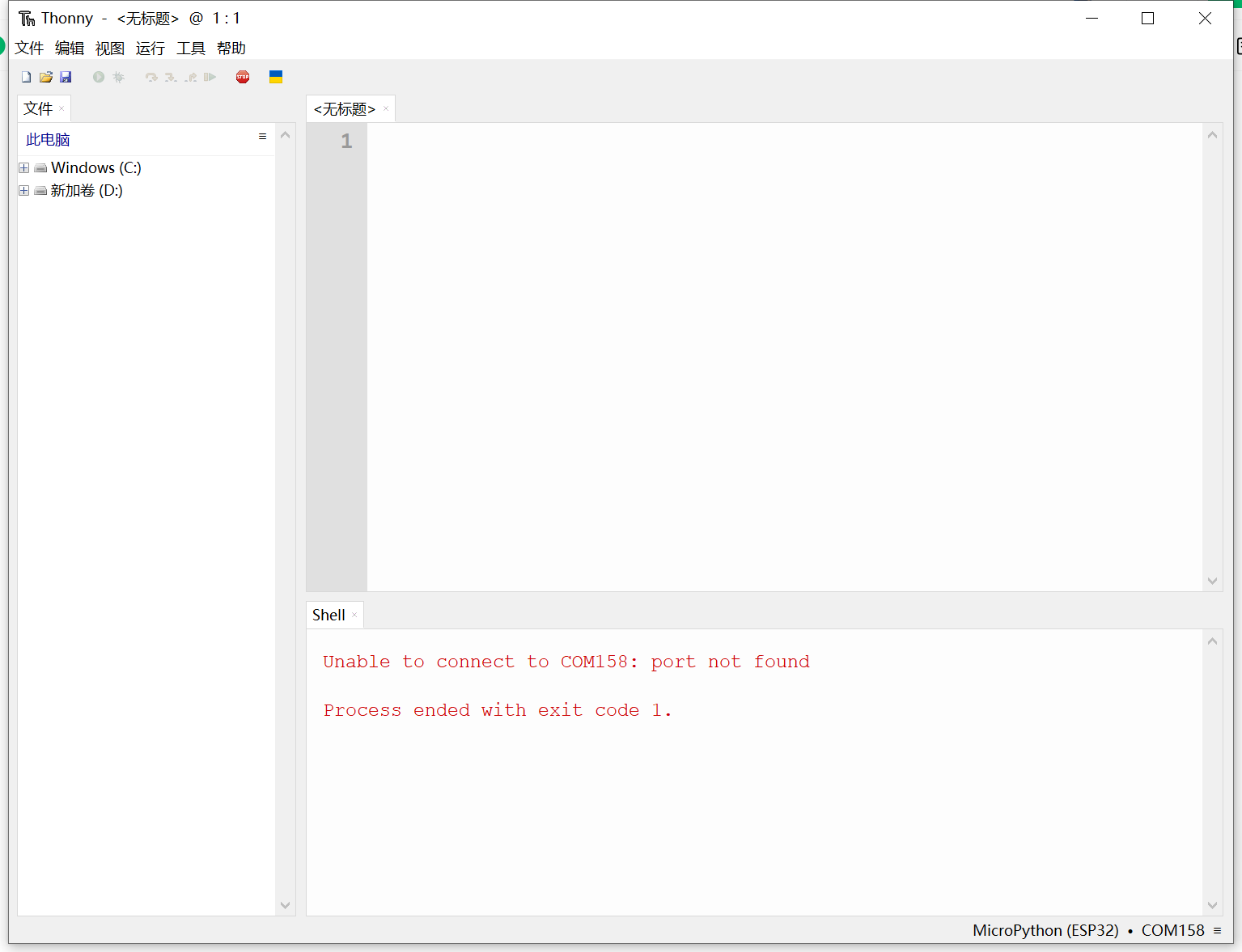
Make sure to uncheck "Restart interpreter before running the script", otherwise the device will keep restarting and you won't be able to enter debug mode.
3.3 Restart the Device
Click the restart button in the toolbar to restart the device.
3.4 Interrupt the Current Program
The device runs the main program by default when powered on. You must interrupt the current program first before running scripts from Thonny.
3.5 Write and Run Hello World
Enter the following code in the Thonny editor:
print("Hello, Socolode!")
Click the Run button to see the output in the console.
Now you're ready to write your own APP programs!
4. Package Your APP
You can refer to the existing demo programs for packaging:
- Icon creation: Create an icon for your APP
- Package APP: Package your script into a format that can run on the device
5. Run Your APP
Upload the packaged APP to your device and run it.
Next Step
After setting up the development environment, you can start writing your first light effect script.