Firmware Update & System Flashing
There are three ways to flash firmware: online update, via Thonny, or via command line. Choose the method that works best for you. This guide applies to Socolode light controllers (Firefly T1, Beetle S1, and future series).
Online Update is the simplest and fastest method. No software installation is required — you can flash the firmware directly in your browser. We recommend using it first.
Method 1: Online Firmware Update (Recommended)
Use the online tool to flash the firmware in one click, no software such as Thonny required.
🚀 Open Online Firmware Flasher →
The tool opens in a new page. When done, click "Back to Docs" in the top-left corner to return here.
Steps:
- Download the firmware file (see the "Download Firmware" section below)
- Click the "Open Online Firmware Flasher" button above to open the tool page
- Hold the joystick right button (BOOT key) without releasing, and connect the USB cable to your computer at the same time
- On the tool page, click "Select" and choose the downloaded firmware
.binfile - Click "Connect Device" and select the serial port for your controller in the browser popup
- Click "Start Update" and wait for the progress bar to finish
The online tool is built on browser Web Serial technology. It only supports Chrome / Edge browsers and requires a desktop computer — iOS devices are not supported. Please update your browser to the latest version before use.
Method 2: Flash via Thonny
1. Install Thonny
- Go to the Thonny official website: https://thonny.org/
- Download the Thonny IDE installer for your operating system:
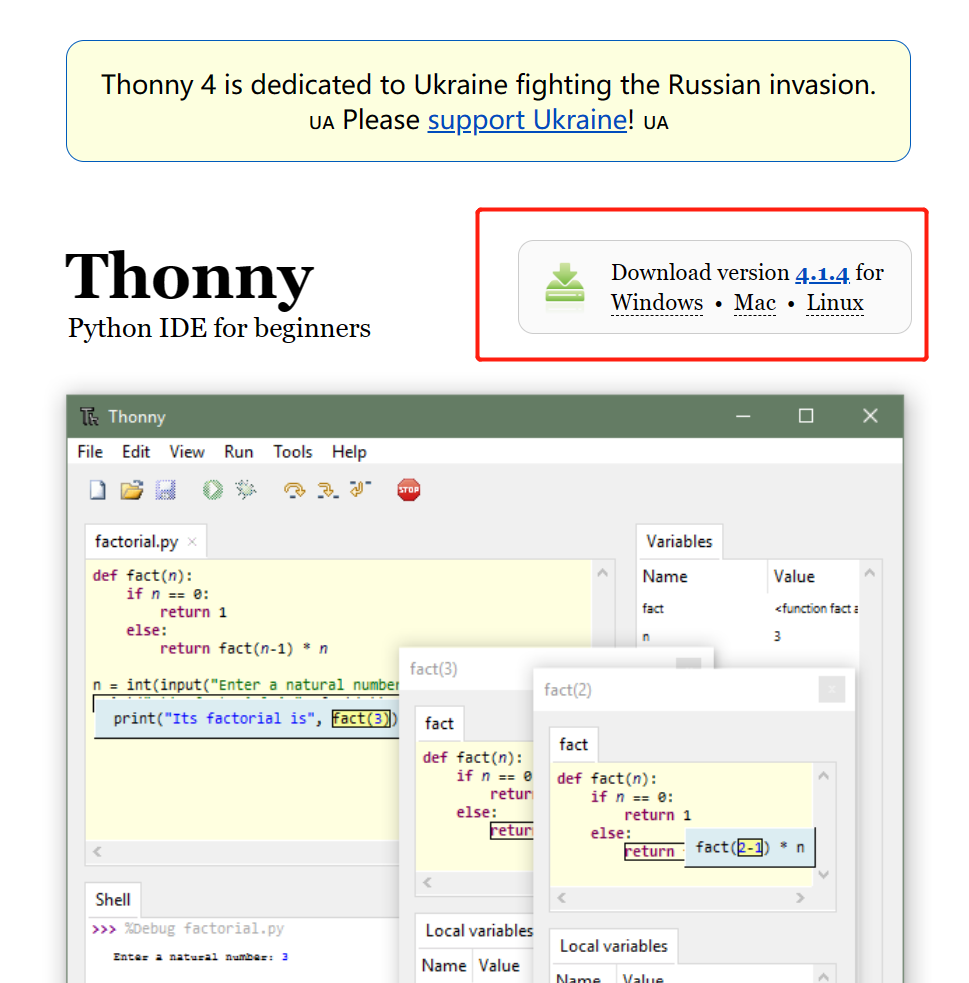
- Follow the prompts to install Thonny.
2. Download Firmware
Latest firmware files are hosted in the official GitHub repositories, organized by release channel:
- Firefly T1 firmware: firefly-t1/firmware
- Beetle S1 firmware: beetle-s1/firmware
In each repo:
firmware/stable/– Stable releases (recommended for everyday use)firmware/beta/– Beta releases (includes new features, may be unstable)
3. Flashing Steps
① Power off — Turn off your controller.
② Hold the joystick right button — Press and hold the joystick's right direction button. Keep holding it:
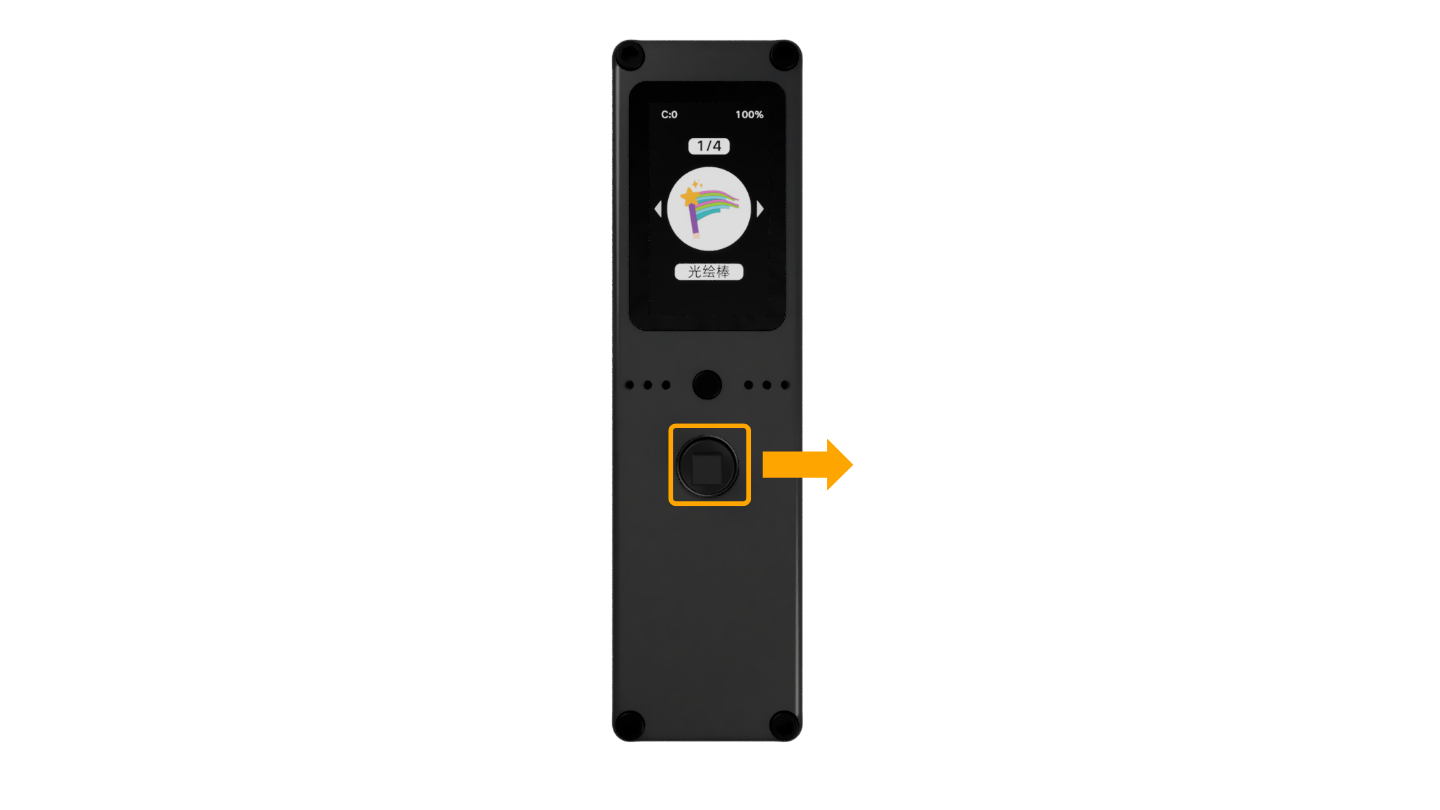
③ Connect to computer — While holding the right button, connect the USB cable to your computer. Once the device is detected, you can release the button (the device will not power on).
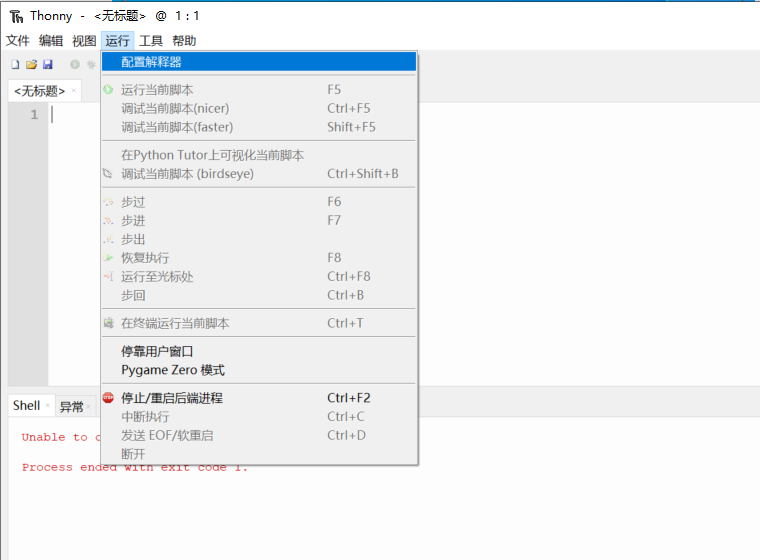
④ Open Thonny interpreter configuration — Go to Run → Configure Interpreter in the toolbar:
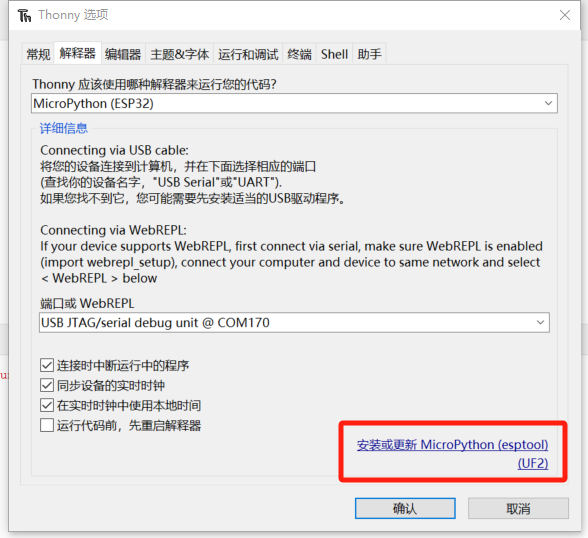
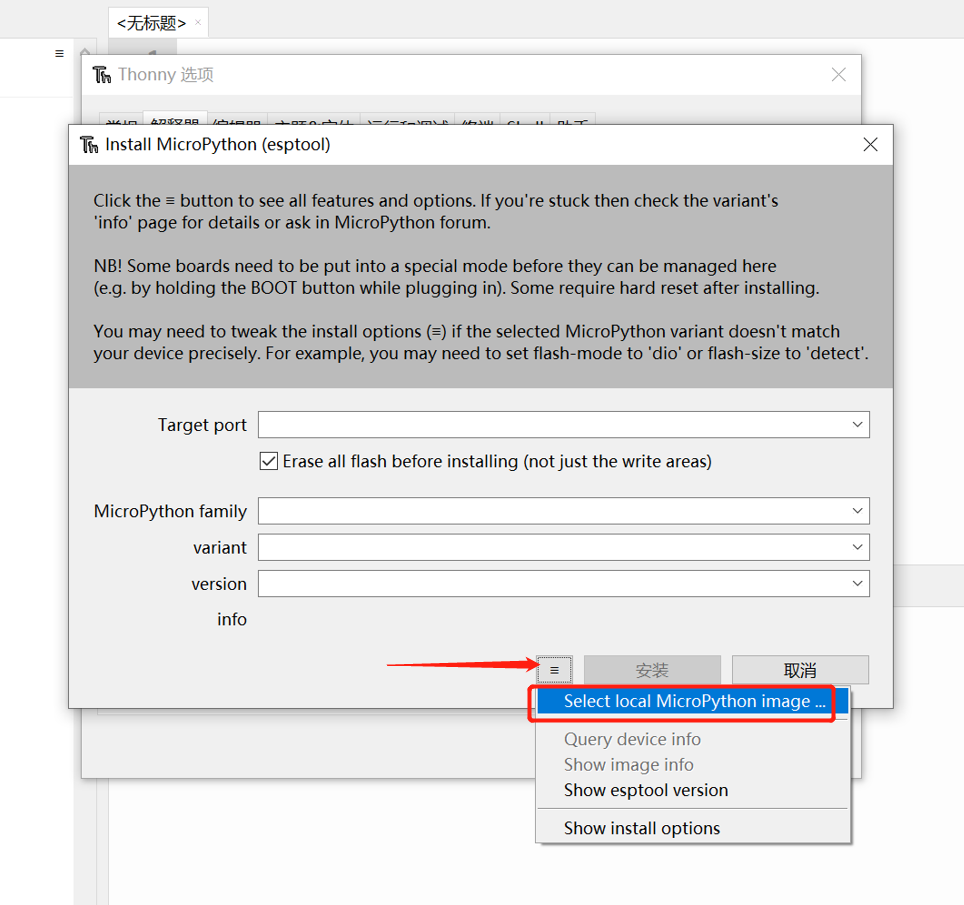
⑤ Click "Install or update MicroPython" — In the interpreter configuration window, click "Install or update MicroPython":
⑥ Select the firmware file — Choose the firmware file you just downloaded:
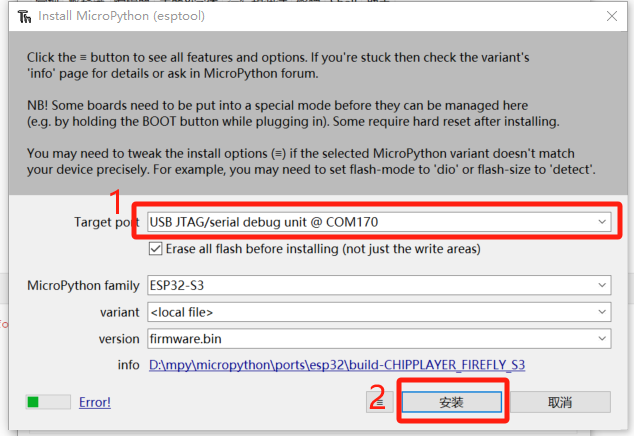
⑦ Select the COM port and install — Choose the COM port corresponding to your controller, and click Install to start flashing:
Method 3: Flash via Command Line
1. Open Command Line
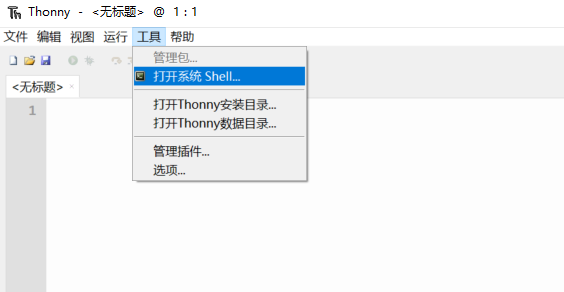
In Thonny, go to Tools → Open System Shell:
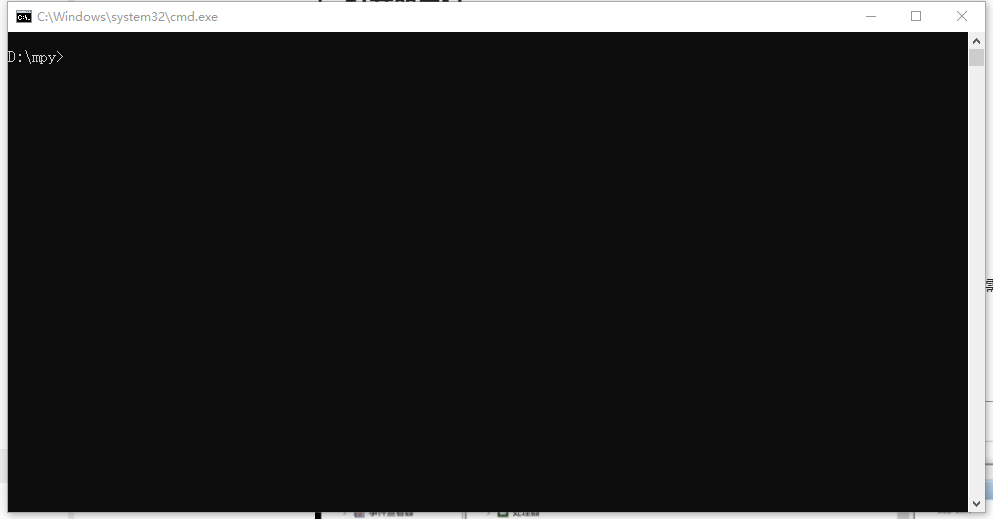
You will get a command-line terminal:
2. Enter the Flash Command
Use the esptool to flash the firmware. Reference command:
D:\micropython\Thonny\python.exe -u -m esptool --port COM14 --chip esp32s3 --baud 115200 write_flash --flash_mode keep --flash_size keep --erase-all 0x0 D:\mpy\micropython\ports\esp32\build-FIREFLY_S3\firmware.bin

Copy the command into the terminal and press Enter to execute it.
Replace the following parameters according to your setup:
D:\micropython\Thonny\python.exe: Replace with the path to Thonny's built-in Python (i.e., your Thonny install location)COM14: Replace with the actual COM port of your controllerD:\mpy\micropython\ports\esp32\build-FIREFLY_S3\firmware.bin: Replace with the actual path where you stored thefirmware.binfile (Beetle S1 users should use the firmware build path for their model)
The target COM port looks like this (shown in the Thonny install dialog as "USB JTAG / SERIAL DEBUG UNIT @ COMxxx"):

If the target port does not show your controller's COM port, it's likely because you didn't hold the joystick right button while connecting the USB cable. Try again a few times.
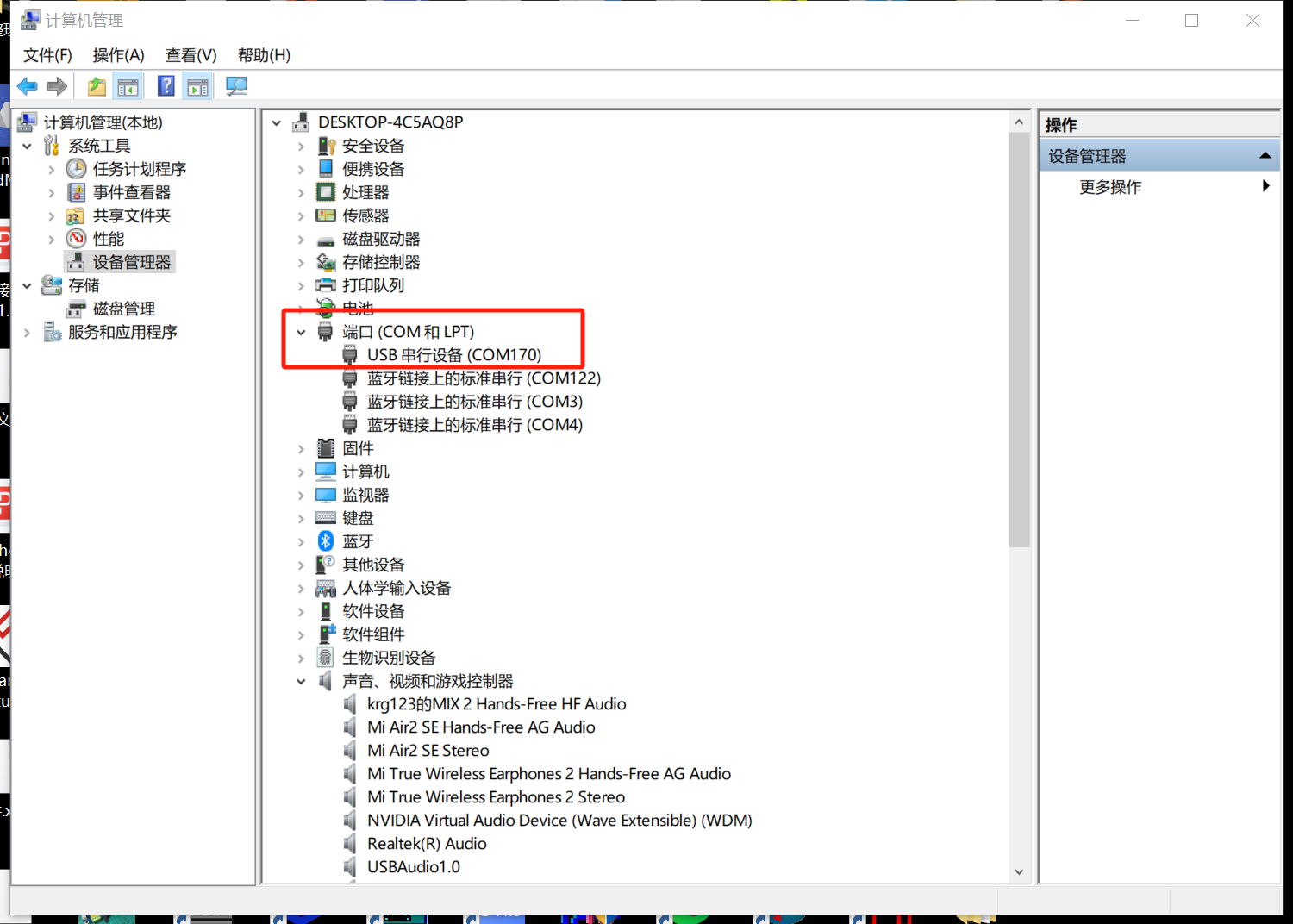
You can also find the controller's COM port in your computer's Device Manager:
Update Tips
- Ensure battery is sufficiently charged before updating
- Use the latest stable firmware unless you need specific features
- You can revert to a previous version if needed