USB Serial Control (CDC)
The Type-C port on the Firefly T1 is native USB on the chip. Plug it into a computer and the computer sees two devices at once: a USB drive (holding the firmware, apps and assets) and a virtual COM port (CDC). This port needs no driver at all, and on the device side it is just an ordinary sys.stdin / sys.stdout — read a line, write a line, and one exchange with the computer is done.
Windows 10+ / macOS / Linux are all driver-free. CDC runs over USB, so the baud rate you pick does not matter.
sys.stdin.readline() reads the commands the computer sends; print() sends data back.
Bytes arriving over USB go into the same input buffer as the REPL — when no program is running, whatever you type is handled by the REPL.
One Type-C port, two devices
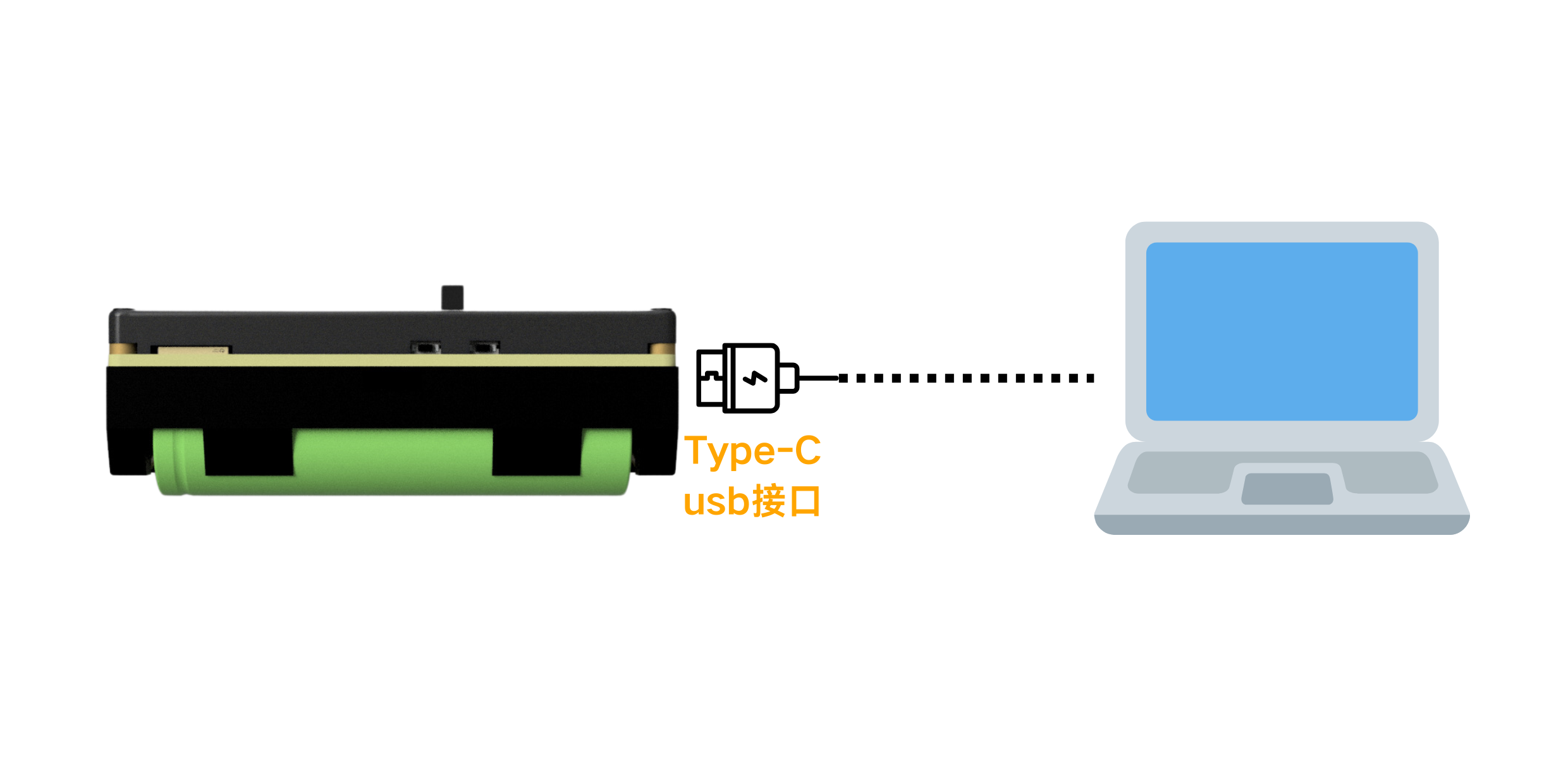
| What the computer sees | Purpose | What it is on the device |
|---|---|---|
| USB drive (MSC) | Holds firmware, apps, images and config files | A FAT partition mounted at /sd |
| COM port (CDC) | Send commands, receive logs, debug | sys.stdin (read) / sys.stdout (write) |
This page only covers the COM port (CDC). The two devices do not interfere with each other: writing files goes over the USB drive path, sending data goes over the serial path.
Hardware and interface
| Item | Value |
|---|---|
| Interface | Type-C, native USB on the chip (TinyUSB) |
| Objects on the device | sys.stdin (read), sys.stdout (write) |
| Driver required | No (driver-free on Windows 10 and later, macOS and mainstream Linux) |
| Baud rate | Ignored. CDC runs over the full-speed USB bus; setting 115200 in a serial tool only keeps it from complaining |
| Input buffer | USB-CDC and the UART0 REPL share the same input buffer |
| Host closed / not connected | Written data is silently discarded (the firmware only sends when a CDC host is connected) |
| Single write timeout | At most 500 ms; any remaining data is dropped instead of blocking the program forever |
| Interrupt character | Ctrl-C (0x03) is turned straight into a KeyboardInterrupt by the firmware — your program never sees that byte |
Quick start
Paste the lines below into the REPL, or put them in boot.py on the SD card:
import sys

print("Firefly T1 ready")         # the serial tool on the computer shows this line immediately

while True:
    line = sys.stdin.readline()   # block until the computer sends a full line
    print("received:", line)
What you should see: type hello in the serial tool on your computer and enable "send newline", and the device immediately echoes received: hello.
API reference
There is no extra cdc module on the device — you use MicroPython's standard sys.stdin / sys.stdout. The interfaces below have all been verified by the official apps.
Read a line sys.stdin.readline()
line = sys.stdin.readline()
Reads one whole line from the computer and returns a str.
- Blocking: while there is no newline in the buffer the call keeps waiting, and the code after it does not run.
- The returned string includes the trailing newline; usually you chain a
.strip()to remove it. - The serial tool must have "send newline" enabled (
\nor\r\n), otherwisereadline()never returns. - After your program exits and the REPL takes over again, whatever you type goes to the REPL, not to your code.
Write a line print() / sys.stdout.write()
print("data")                     # newline added for you
sys.stdout.write("data\n")        # no newline added; write \n yourself
Sends data to the computer, returning the number of characters written (print() returns None).
- Serial tools usually refresh line by line, so remember the
\neach time. - Data is discarded when no host is connected, without raising an error — if your debug log never shows up, first check that the port is actually open.
- A single write waits at most 500 ms: if the host port is open but nobody reads it and the buffer fills, the rest is dropped instead of waiting forever.
- This is also the REPL's output channel, so
print()calls from a running program show up in the same port.
Non-blocking read select.poll()
readline() blocks, so if the device also needs to refresh the display and read buttons, use select.poll() to first ask "is there any data?":
import select
import sys

poll = select.poll()
poll.register(sys.stdin, select.POLLIN)

events = poll.poll(0)             # argument is a timeout in milliseconds; 0 = return immediately
if events:
    cmd = sys.stdin.readline().strip()
    print("received:", cmd)
This is the approach the official apps use: call poll(0) in the main loop, readline() only when data is available, and keep rendering frames when there is none.
Interrupt Ctrl-C
A Ctrl-C (byte 0x03) arriving over USB is turned straight into a keyboard interrupt by the firmware, which is why a loop such as while True: sys.stdin.readline() can be stopped with Ctrl-C:
try:
    while True:
        cmd = sys.stdin.readline().strip()
except KeyboardInterrupt:
    print("stopped")
One thing to note: this byte never appears in the value returned by readline(), so you cannot treat it as an ordinary command.
Common pitfalls
| Pitfall | Cause and correct approach |
|---|---|
| Commands sent, device ignores them | The serial tool has no "send newline" → readline() needs a newline before it returns |
| The program seems "stuck" | It reached readline() and is waiting for input → use a non-blocking poll() read to keep running and receive commands |
Want to use Ctrl-C as a command | The firmware eats it as a keyboard interrupt → use ESC or your own string (such as quit) as the exit command |
print() produces nothing | The host-side port is not open → data is only sent to a connected CDC host, otherwise discarded |
| Characters lost under heavy logging | The 500 ms single-write timeout → log less often, or write logs to a file |
| Text typed into the serial tool turns into a REPL error | The program has exited and the REPL took over the input → run your script again |
| Garbled non-ASCII text | The device sends UTF-8 bytes → set the serial tool to UTF-8 too |
| Serial tool cannot connect / baud rate error | Baud rate is meaningless for CDC → anything, e.g. 115200, works; if it still will not connect, try another data cable (not a charge-only cable) |
More recipes
Command dispatch (the most common skeleton)
import sys

while True:
    cmd = sys.stdin.readline().strip().lower()
    if not cmd:
        continue
    if cmd == "ping":
        print("pong")
    elif cmd == "ver":
        print("Firefly T1")
    elif cmd == "quit":
        print("bye")
        break
    else:
        print("unknown command:", cmd)
Sending commands from Python on the computer
Install pyserial on the host (pip install pyserial) and replace COM3 with your port (on macOS / Linux it looks like /dev/tty.usbmodem*):
import serial
import time

port = serial.Serial('COM3', 115200, timeout=1)
time.sleep(0.5)                 # give the device-side CDC time to come up

port.write(b'ping\n')           # note: it must end with a newline
print(port.readline().decode().strip())

port.close()
Debug logging behind a single switch
import sys

DEBUG = True


def log(*args):
    if DEBUG:
        print("[log]", *args)
log() goes over the same CDC and shows up directly in the serial tool; setting DEBUG = False makes it completely silent.
Complete example
Firefly T1 apps live on the SD card under /sd/apps/<app folder>/, with boot.py as the entry point. Put the code below in /sd/apps/my-cdc-app/boot.py: it receives commands without blocking, ping echoes, beep triggers the buzzer and quit exits.
import select
import sys
import time

import beep

poll = select.poll()
poll.register(sys.stdin, select.POLLIN)

print("my-cdc-app started, type help")

running = True
while running:
    events = poll.poll(0)
    if events:
        cmd = sys.stdin.readline().strip().lower()
        if cmd == "help":
            print("commands: ping / beep / help / quit")
        elif cmd == "ping":
            print("pong")
        elif cmd == "beep":
            beep.tone(2000, 200)
            print("beep!")
        elif cmd == "quit":
            print("bye")
            running = False
        elif cmd:
            print("unknown command:", cmd)

    time.sleep(0.02)             # work such as refreshing the display or the LEDs goes here

beep.stop()
Troubleshooting
| Symptom | Cause / fix |
|---|---|
| No COM port appears at all | You are using a charge-only cable (no data wires) → try another cable; or another USB port / another computer |
| Port appears but nothing you send has any effect | The serial tool has no "send newline" → enable it and send again |
| Device logs arrive, but commands do nothing | The program has exited to the REPL and the REPL owns the input → run the script again |
Repeated >>> prompts appear | You interrupted into the REPL prompt → press Ctrl-D for a soft reset, then run the script |
| Printed output is missing lines | Printing too often triggers the 500 ms write timeout → slow it down or write to a file |
Device-side OSError / crash | The read was interrupted or the cable was hot-plugged → wrap the main loop in try/except |
| Non-ASCII text turns into question marks | The serial tool is not using UTF-8 → switch its encoding to UTF-8 |
Related modules: Buzzer (beep), Five-Way Button (button) and Expansion Interface.
AI usage (coming soon)
Soon you will not have to write a command-dispatch skeleton or remember how poll() works: describe the interaction you want in plain language and the Agent will follow the API in this page to generate a complete program that runs on the Firefly T1.
For example, just tell it:
Let the computer send
beep 2000 200over the serial port to make the buzzer sound at that frequency for that long, sendsay helloto show that sentence on the display, and sendquitto exit.
It will combine sys.stdin, select.poll(), beep and the display interface into a working program and place it on the SD card under /sd/apps/.
The entry link will go here. Once it is live, one click takes you straight to describing the app you want.