Material Download
After creating your light painting materials, you need to import them into the wand device before use. Beetle S1 supports two ways to import: wireless hotspot (no cable needed) and wired USB drive (via USB cable). Choose whichever fits your needs.
Wireless Connection (Recommended)
No data cable needed — use the Wi-Fi hotspot built into Beetle S1 and upload materials from your phone or computer's browser.
Step 1: Enter "Hotspot"
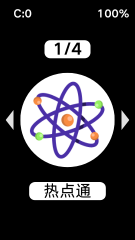
On the main screen, select and enter the "Hotspot" feature.
Step 2: Connect to the Wi-Fi Hotspot
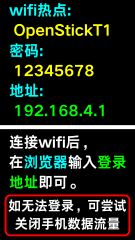
After entering, the screen shows the Wi-Fi hotspot name and password. Connect your phone or computer to that hotspot.
Step 3: Open the Management Page
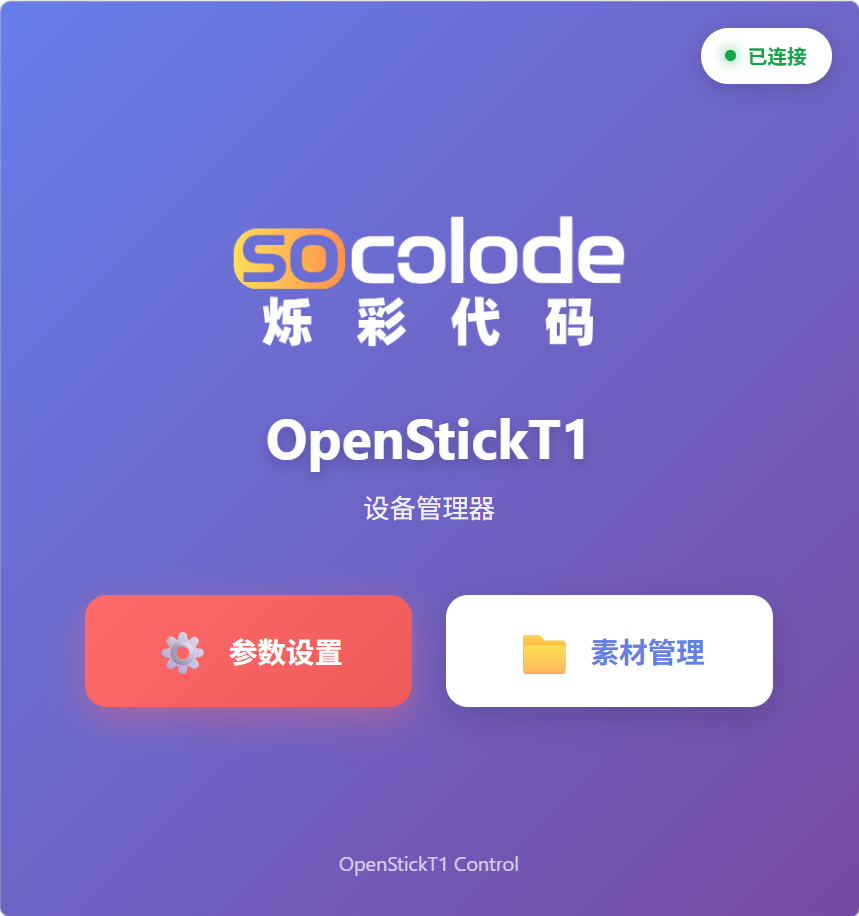
Once connected, open your browser and enter the address shown on the screen, 192.168.4.1, to access the Beetle S1 management page.
Step 4: Upload Materials
Find the asset management section on the page and upload your finished images. Once uploaded, open the light painting wand app and your new materials will be ready to use.
Wired Connection
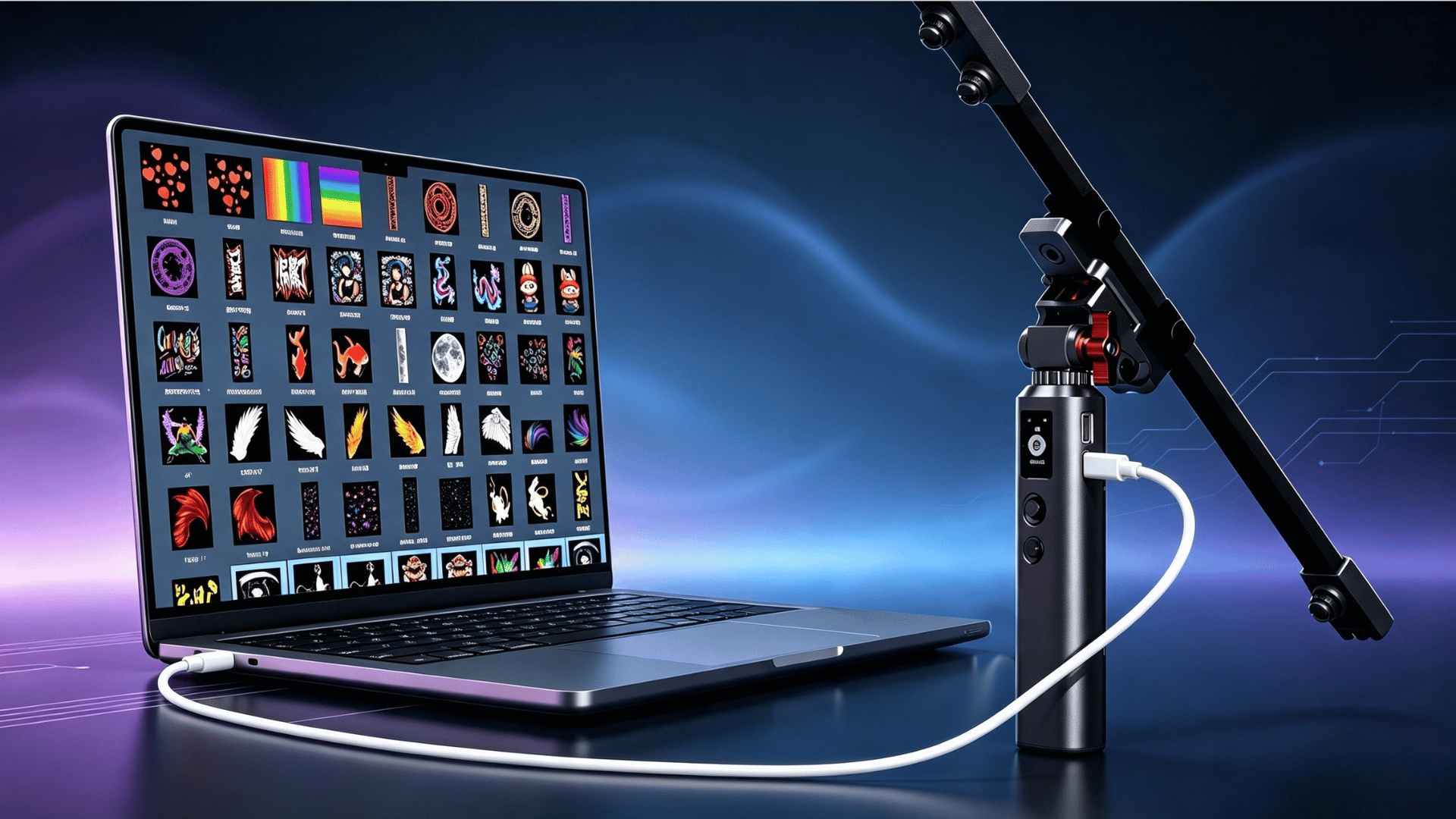
Use the included Type-C data cable to connect Beetle S1 to your computer's USB port, then manage materials like a USB drive.
1. Connect to Computer
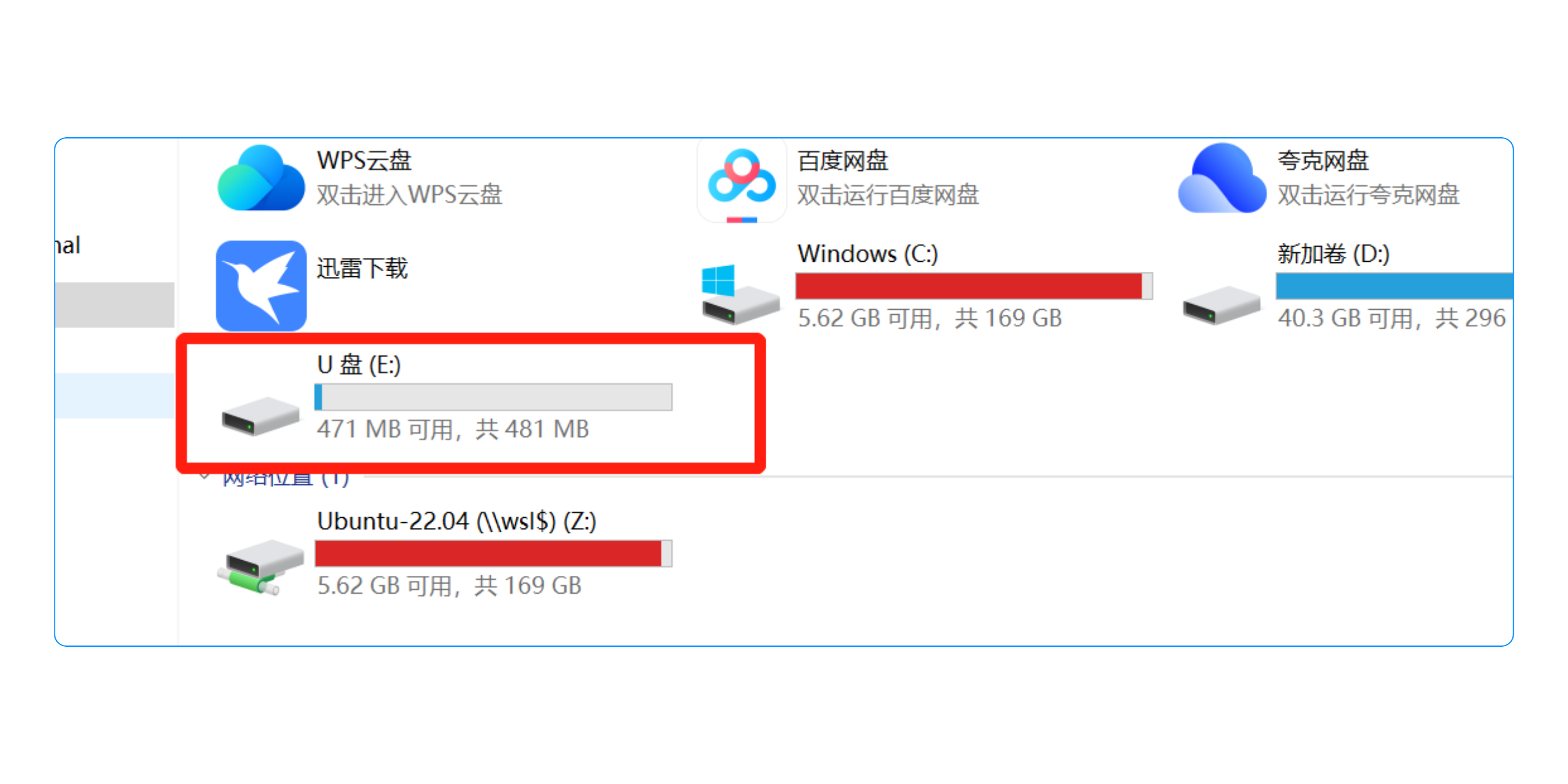
Connect the Beetle S1 to your computer using a USB cable, then wait for the computer to detect a new USB drive.
Connection method:
USB drive detected by computer:
2. Import Material Images
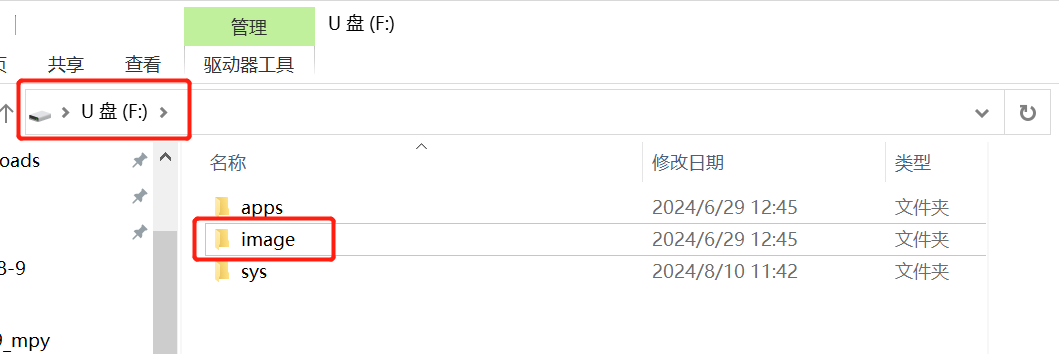
1️⃣ Open the image folder
Open the USB drive and navigate to the image folder (create it manually if it doesn't exist).
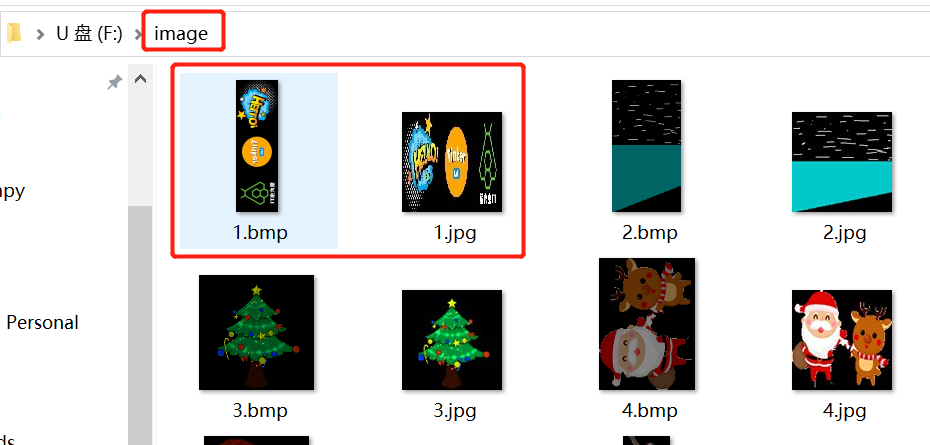
2️⃣ Copy material images
Copy your finished main image (BMP) and preview image (JPG) into the image folder to complete the upload.
We recommend renaming material files with numbers or English characters (e.g., 001.bmp, 001.jpg). Avoid Chinese filenames, which the device may not recognize.
Play Materials After Import
Once images are uploaded, open the light painting wand app on the Beetle S1 and select the imported images to start creating! 🎉
If you haven't created materials yet, please refer to the Material Creation tutorial to learn how to make light painting images with the online tool or Photoshop.