Font Library Usage & Creation
Built-in Bitmap String Fonts
128-Character Bitmap Fonts
128-character bitmap fonts are suitable for displaying the basic ASCII character set. These fonts come in different sizes and styles to suit a variety of display needs.
| Font File | Example Image |
|---|---|
| vga1_8x8.py |  |
| vga1_8x16.py | |
| vga1_16x16.py | |
| vga1_16x32.py | |
| vga1_bold_16x16.py |  |
| vga1_bold_16x32.py |
256-Character Bitmap Fonts
256-character bitmap fonts include a wider character set, including some international characters and symbols. These fonts are usually used in more complex application scenarios.
| Font File | Example Image |
|---|---|
| vga2_8x8.py |  |
| vga2_8x16.py | |
| vga2_16x16.py | |
| vga2_16x32.py | |
| vga2_bold_16x16.py |  |
| vga2_bold_16x32.py |
Usage Example
from lcd import LCD
import vga1_16x32 as font

# Initialize the LCD
lcd = LCD()

# Clear the screen
lcd.fill(LCD.BLACK)
lcd.text(font, "hello", 0, 0, LCD.WHITE, LCD.BLACK)
Displaying bitmap text:
- Call the
lcd.text()method to display the text "hello" at position (0, 0) on the screen. - Set the font color to white (
LCD.WHITE) and the background color to black (LCD.BLACK).
Built-in Vector String Fonts
Vector Character Fonts
| Font File | Example Image |
|---|---|
| astrol.py | 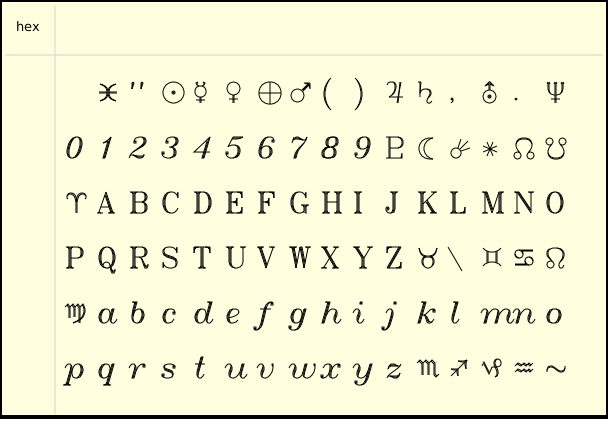 |
| cyrilc.py | 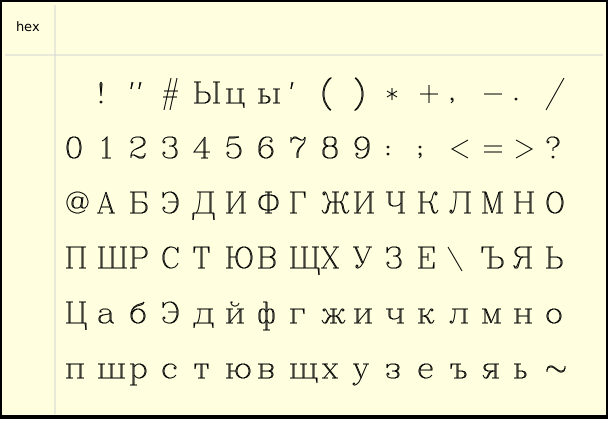 |
| gotheng.py | 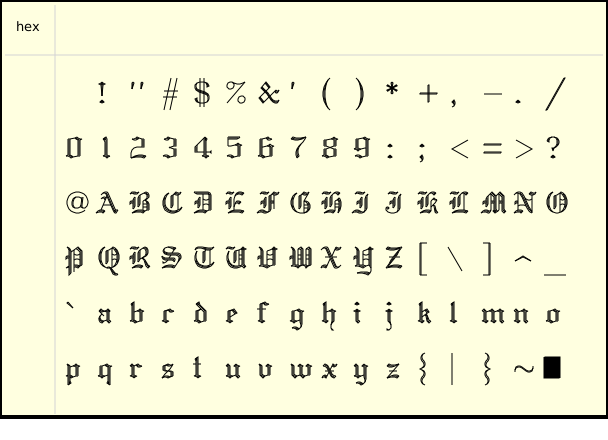 |
| gothger.py | 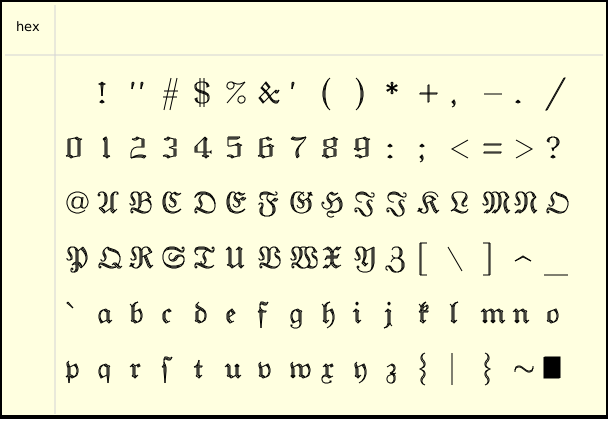 |
| gothita.py | 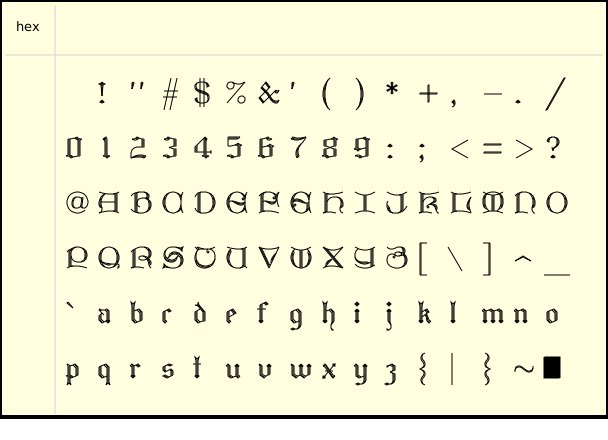 |
| greekc.py | 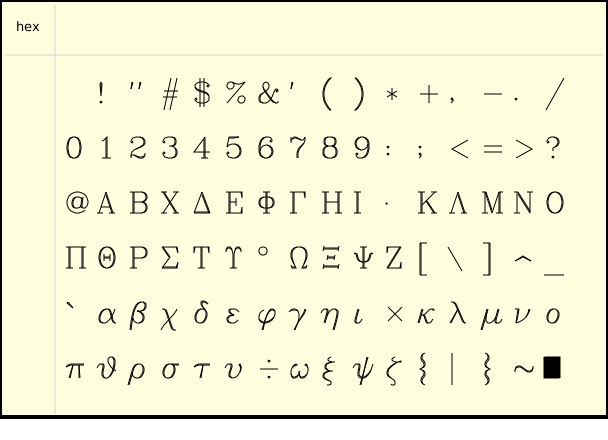 |
| greekcs.py | 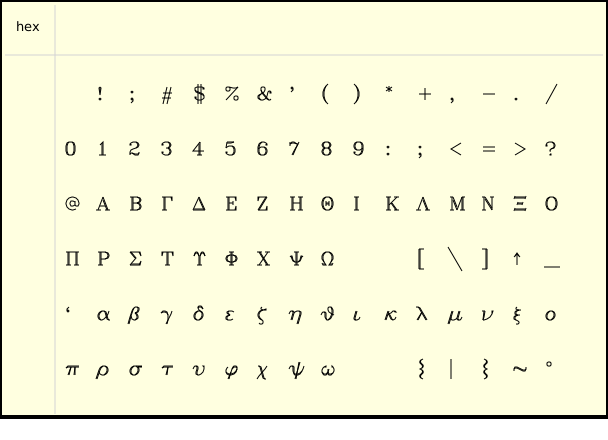 |
| greekp.py | 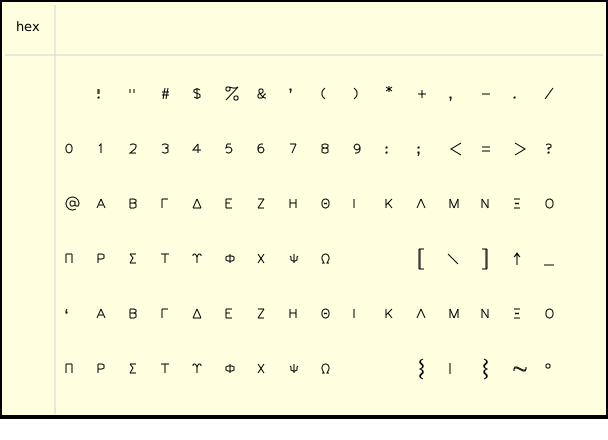 |
| greeks.py | 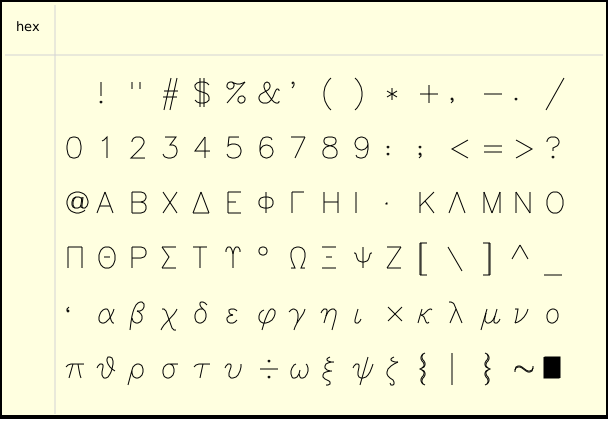 |
| italicc.py | 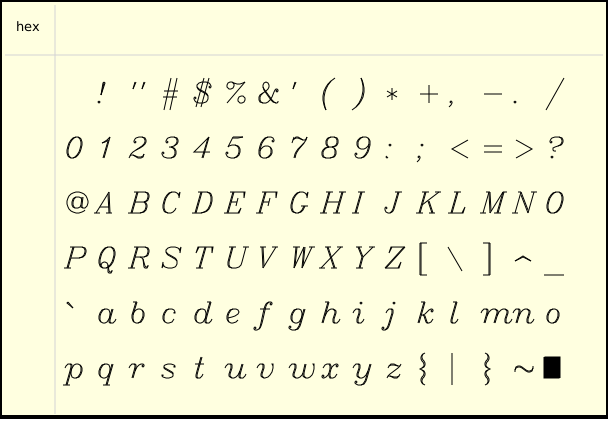 |
| italiccs.py | 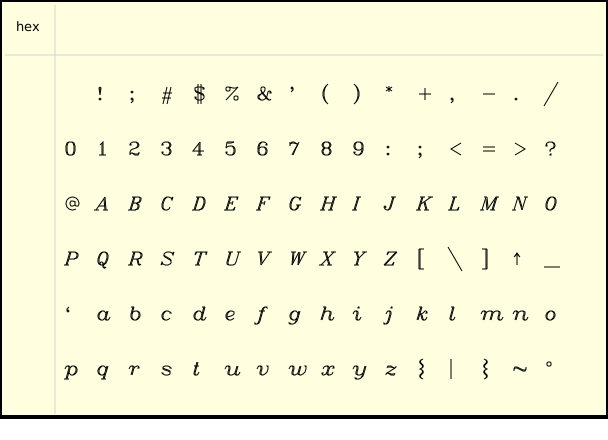 |
| italict.py | 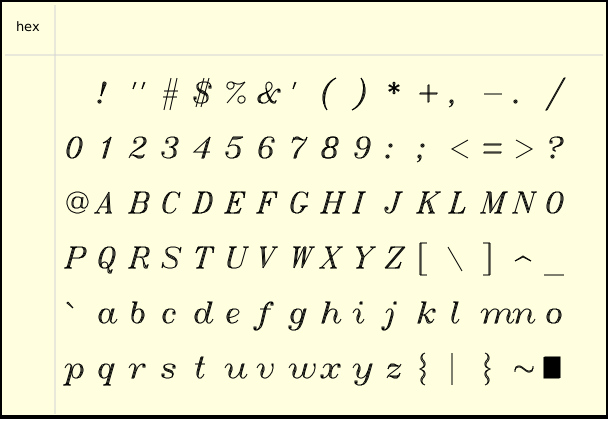 |
| lowmat.py | 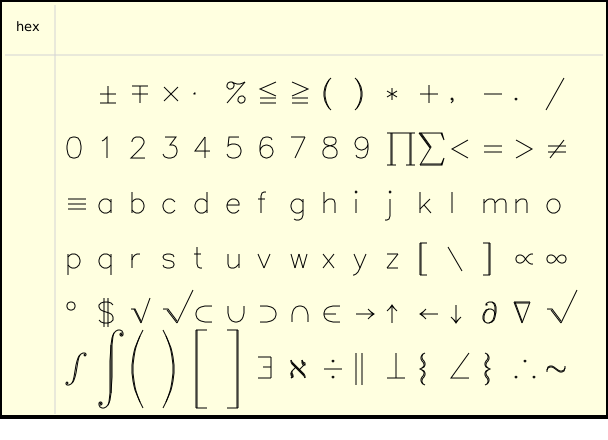 |
| marker.py | 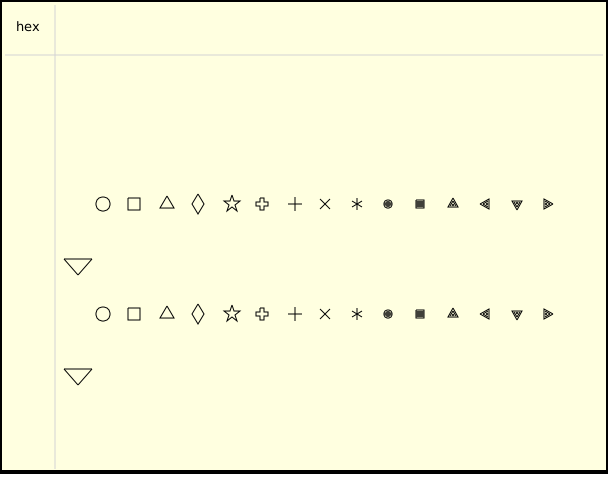 |
| meteo.py | 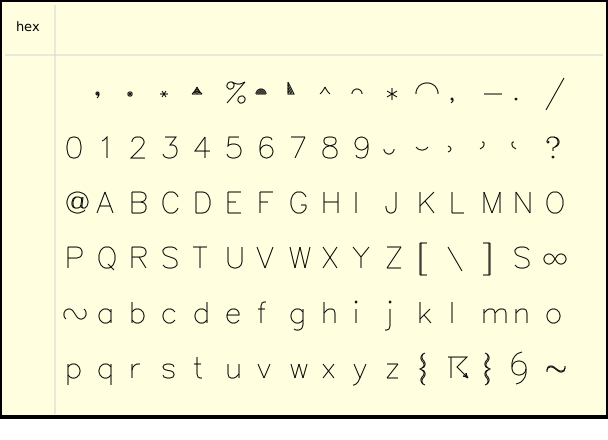 |
| music.py | 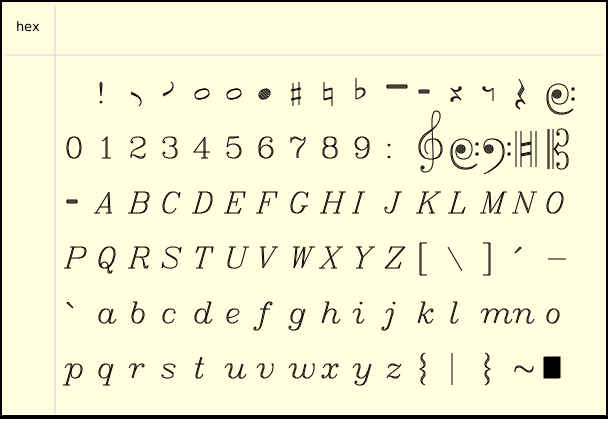 |
| romanc.py | 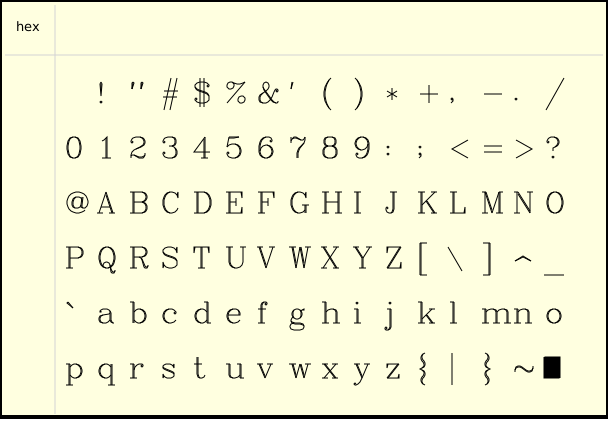 |
| romancs.py | 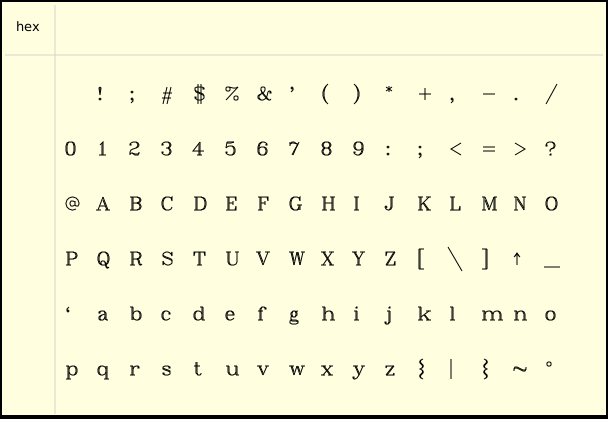 |
| romand.py | 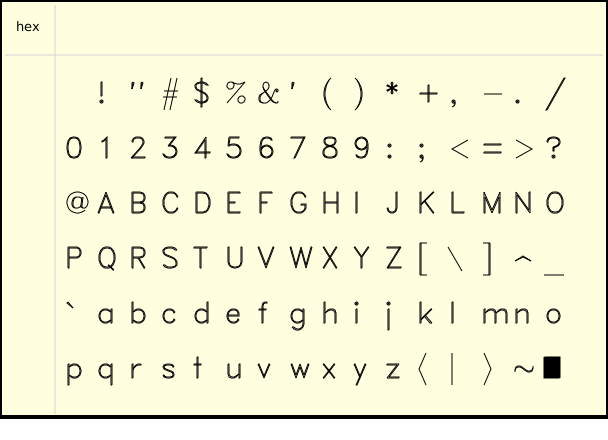 |
| romanp.py | 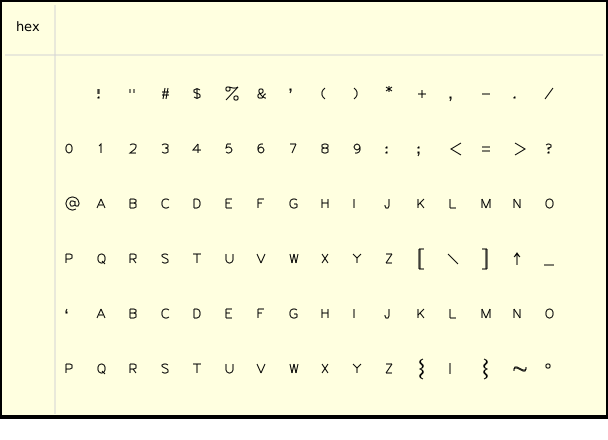 |
| romans.py | 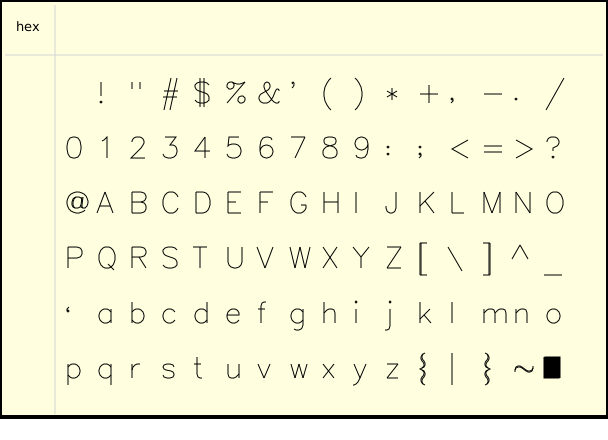 |
| romant.py | 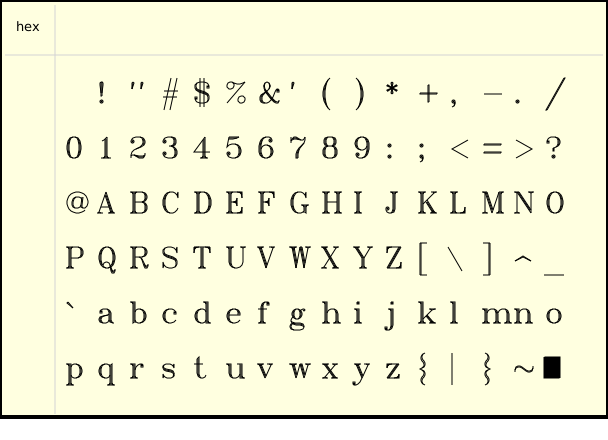 |
| scriptc.py | 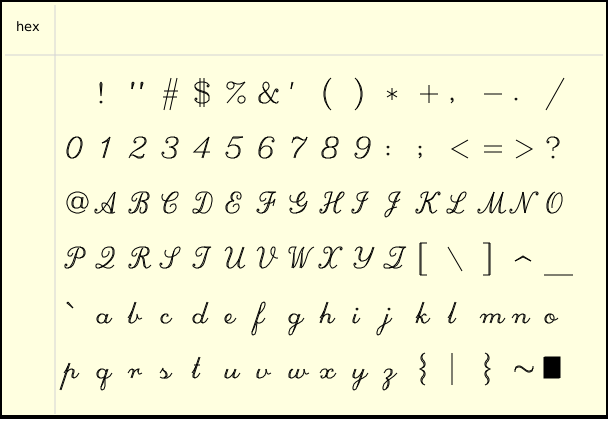 |
| scripts.py | 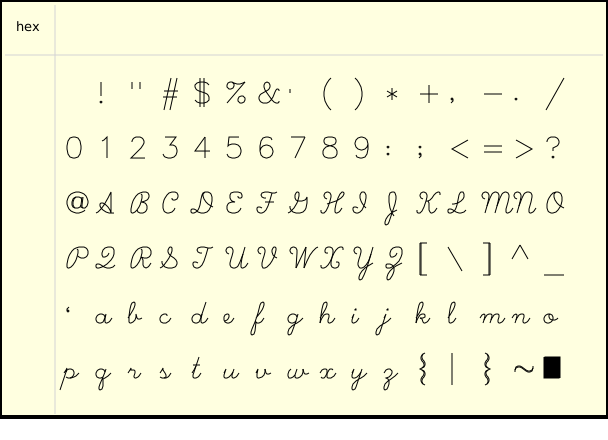 |
| symbol.py | 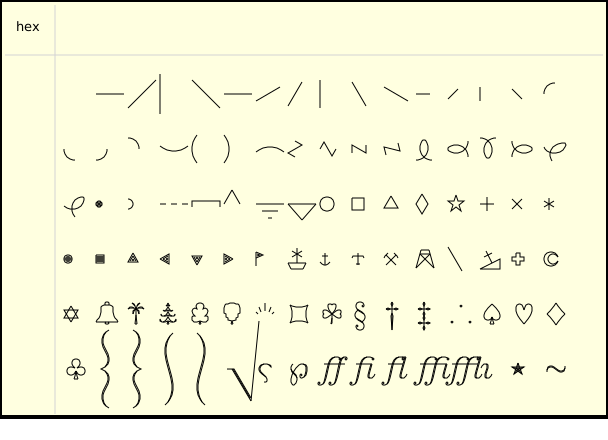 |
| uppmat.py | 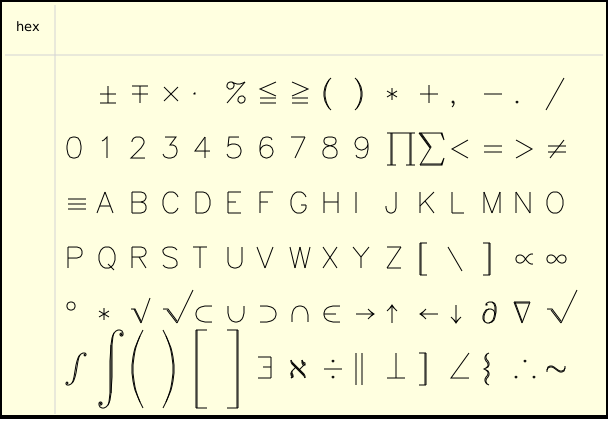 |
Usage Example
from lcd import LCD
import astrol as font

# Initialize the LCD
lcd = LCD()

# Clear the screen
lcd.fill(LCD.BLACK)
lcd.draw(font, "Hello", 0, 0, LCD.WHITE, scale=1.5)
Displaying vector text:
- Call the
lcd.draw()method to display the vector fontastroltext "hello" at position (0, 0) on the screen. - Set the font color to white (
LCD.WHITE) and a 1.5x magnification.
External Chinese Font Library (User-made)
Schematic
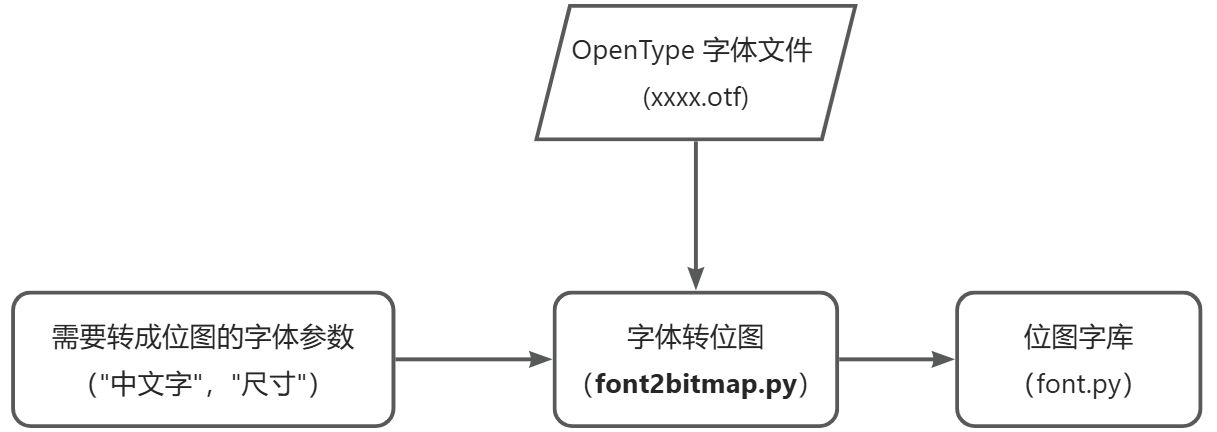
By running the font2bitmap.py program, convert specified text into a bitmap file of specified font, then store the bitmap file on the Beetle S1's SD card. You can then use the font library to display Chinese text!
Creation Steps
- Download the font-to-bitmap conversion program:
font2bitmap.py - Download the font file: NotoSansSC-Regular.zip (needs to be unzipped before use)
- You can use any other font; this is just used as an example.
- Open a CMD terminal and run
font2bitmap.py!
Execution process:
- For example, download the files to
D:\font

- Open CMD: press
Win + R, typecmd, then press Enter.

- Type the command
D:to enter the D drive (enter whichever drive the files are on).
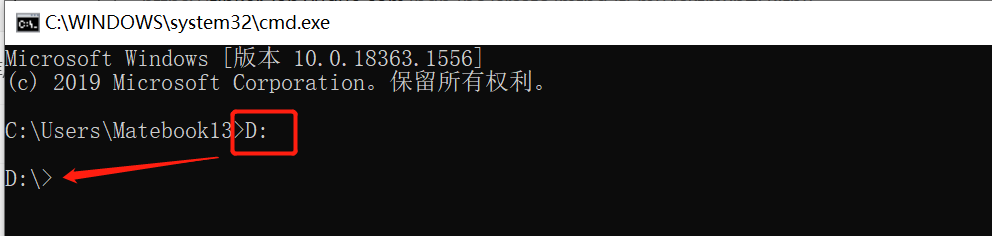
- Type the command
cd d:\fontto enter the folder.
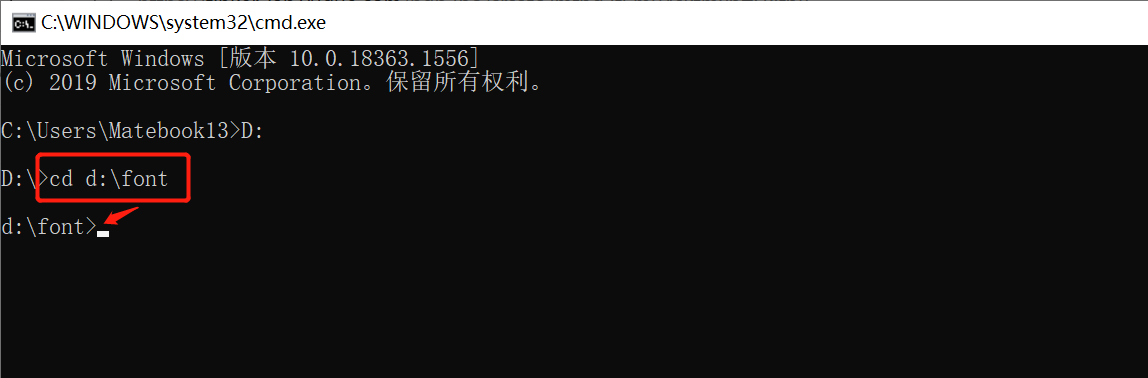
- Type the conversion command:
python font2bitmap.py -s "你好" NotoSansSC-Regular.otf 16 > font.py, then you will get a bitmap library filefont.pycontaining the Chinese text "你好".
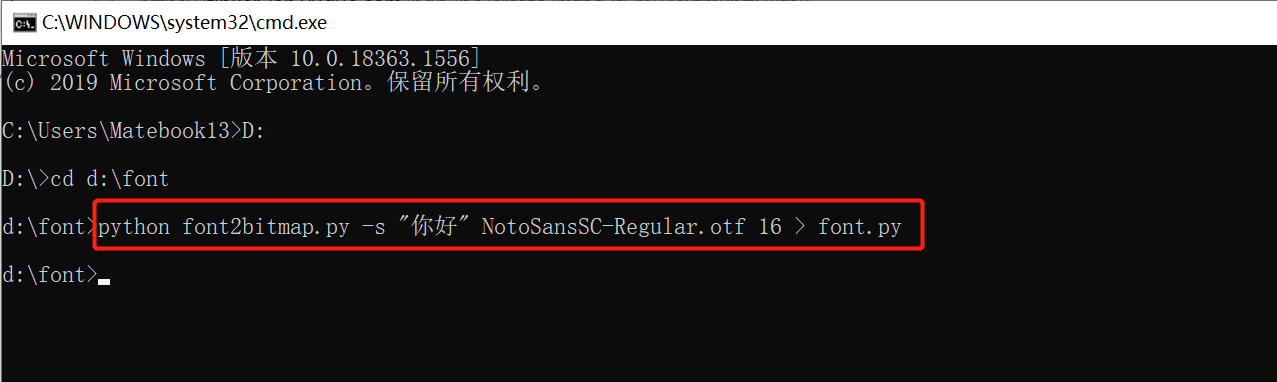
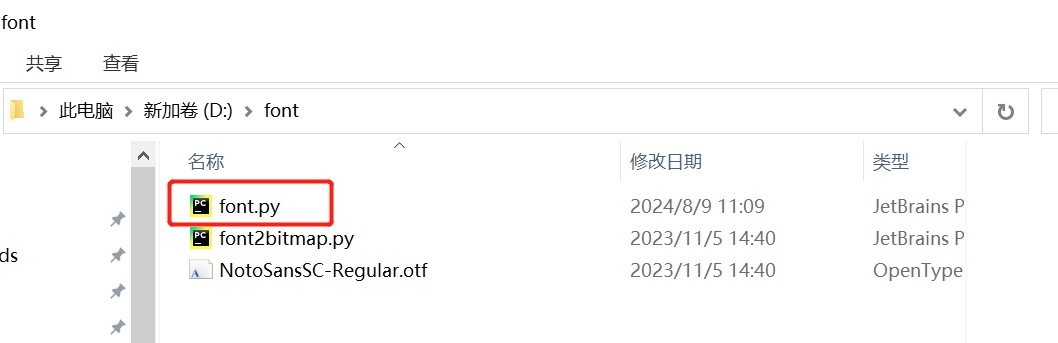
Before running the command python font2bitmap.py -s "你好" NotoSansSC-Regular.otf 16 > font.py, you need to install python3 and other required tools.
Usage Example
- Copy the bitmap file
font.pyto the Beetle S1's\SD\sys\fontdirectory - Then import the
fontmodule (note that you must add the environment variable path first)
import sys
sys.path.append('/sd/sys/font')

import font as font
- Use the
write(bitmap_font, s, x, y[, fg, bg, background_tuple, fill_flag])method to display the text.
import sys
sys.path.append('/sd/sys/font')
import font as font

from lcd import LCD
# Create an LCD instance
display = LCD()

# Clear the screen to black
display.fill(LCD.BLACK)

display.write(font,"你好",0,0,LCD.WHITE)